> ## Documentation Index
> Fetch the complete documentation index at: https://docs.moove.xyz/llms.txt
> Use this file to discover all available pages before exploring further.
# Moove Pay
> Set up the Moove App once, verify your identity, then pay a merchant's payment link by card or PayID — in the browser or straight from your phone.
Pay a merchant's payment link by Visa, Mastercard or PayID. You set up once in the Moove App — a Moove Handle and a verified identity — and from then on you pay in the browser, signing in by scanning a code with your phone, or straight from the Moove App.
**You need the Moove App and a verified identity to pay by card or PayID.** Paying in crypto from a wallet needs neither — choose **Crypto** on the checkout instead.
## What Does Setting Up Involve?
About a minute.
Once, in the Moove App.
On the web, choose **Card** or **PayID** and scan to sign in. On your phone, open the payment in the Moove App.
## How Do I Get The Moove App?
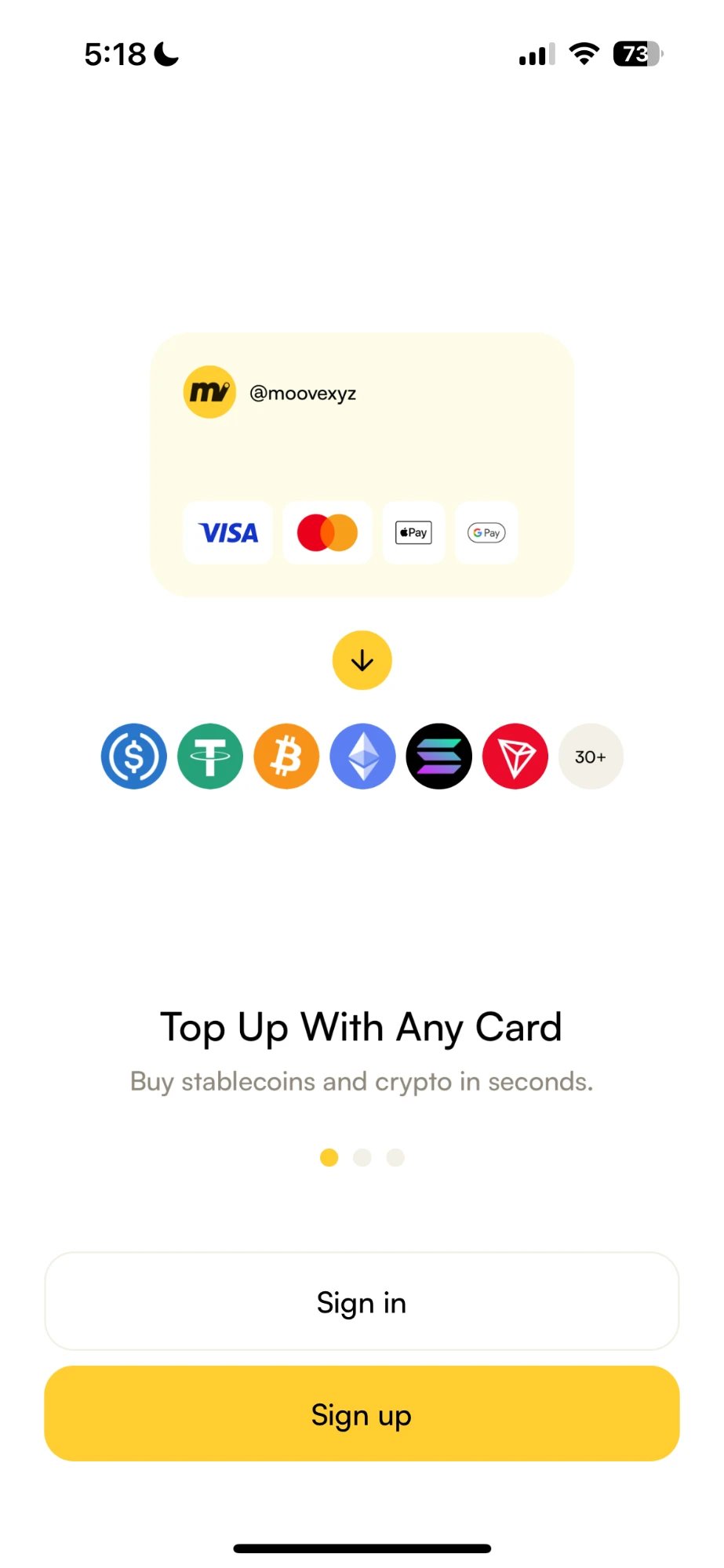
For [iOS or Android](/get-started/download-app), then open it and tap **Sign up**.
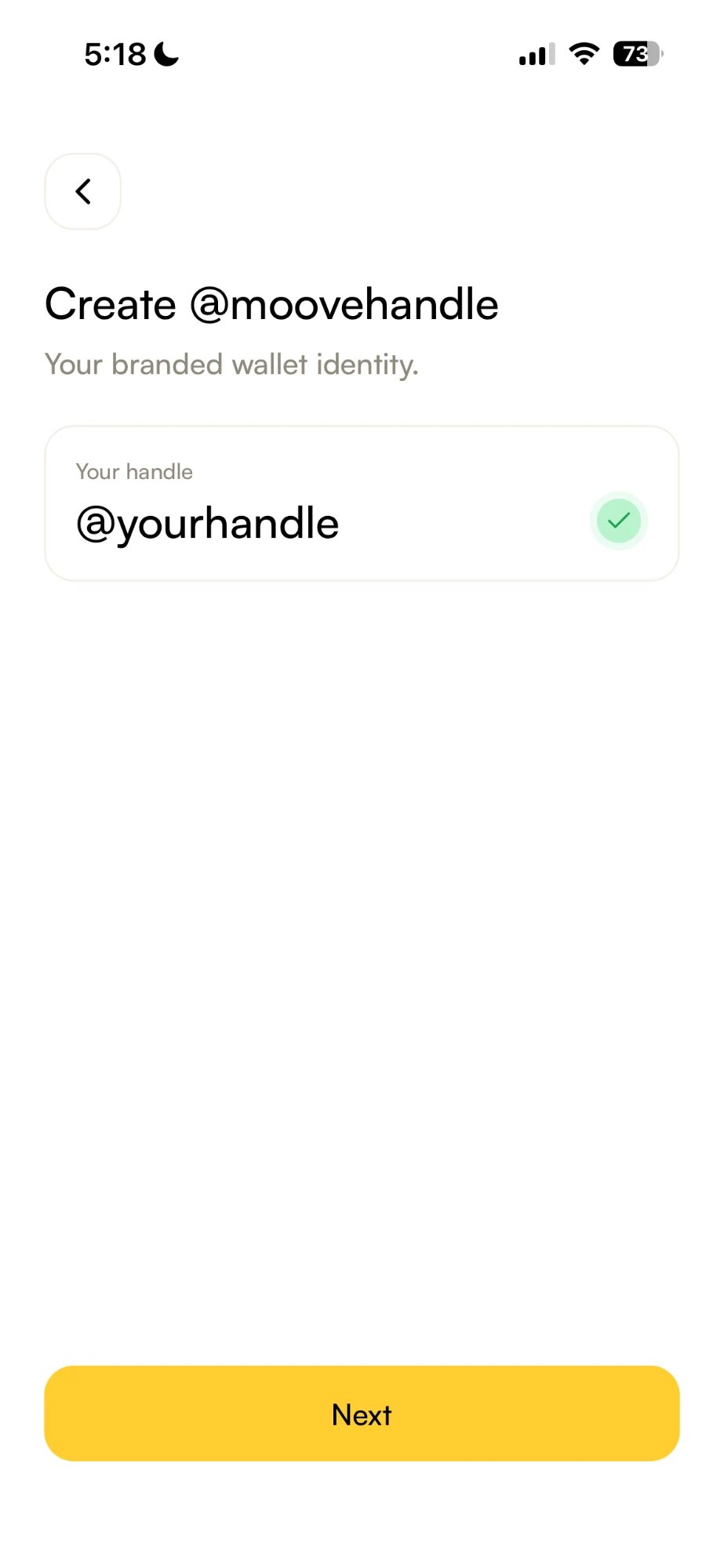
 On **Create @moovehandle**, type the handle you want. A green tick means it is free — tap **Next**.
 On **Did anyone refer you?**, search for the Moove Handle of whoever invited you, or leave it blank. Tap **Sign up** and the Moove App creates your Moove Wallet on your phone.
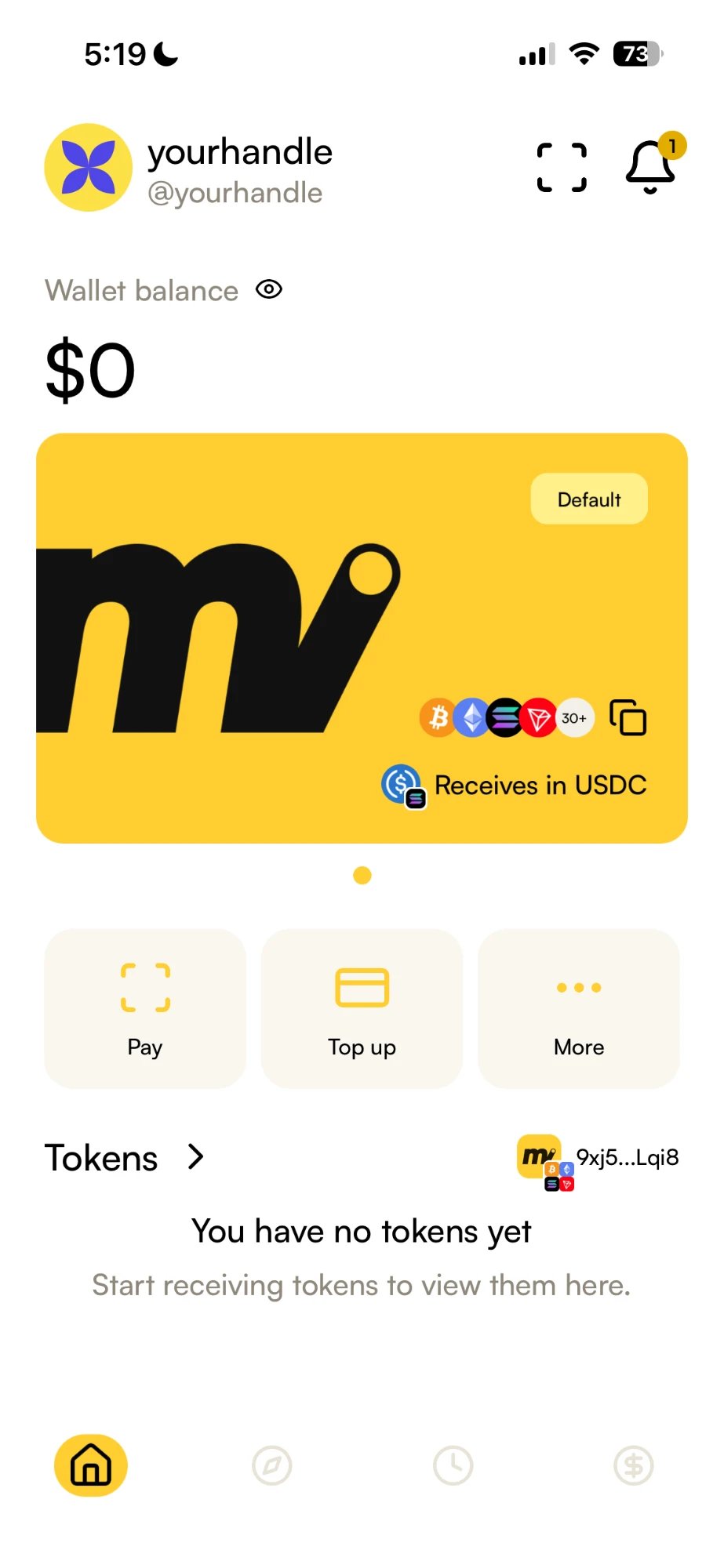
Your Moove Handle sits at the top, with your wallet balance underneath.
**Back up your recovery phrase now.** Sign-up does not show it. Open the account menu → **Your crypto wallets**, tap **…** on your wallet, then **Show recovery phrase**, and store it offline. It is the only way to restore your wallet — moove.xyz never sees it and can never reset it.
On **Did anyone refer you?**, search for the Moove Handle of whoever invited you, or leave it blank. Tap **Sign up** and the Moove App creates your Moove Wallet on your phone.
Your Moove Handle sits at the top, with your wallet balance underneath.
**Back up your recovery phrase now.** Sign-up does not show it. Open the account menu → **Your crypto wallets**, tap **…** on your wallet, then **Show recovery phrase**, and store it offline. It is the only way to restore your wallet — moove.xyz never sees it and can never reset it.
 ## How Do I Verify My Identity?
Once, in the Moove App. A licensed payment partner handles the card side, so they need to know who is paying.
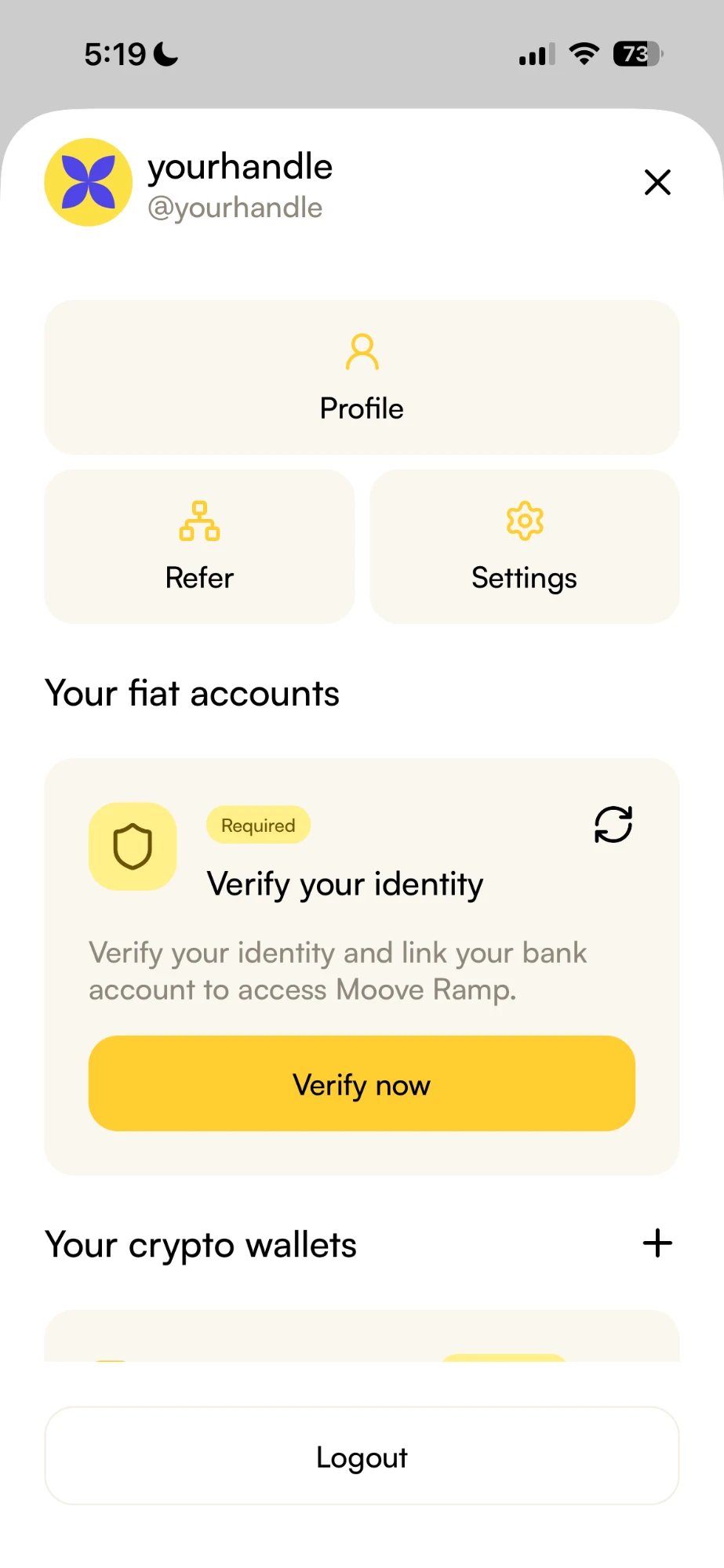
Tap your profile picture at the top left of the home screen. Under **Your fiat accounts**, **Verify your identity** is marked **Required** — tap **Verify now**.
## How Do I Verify My Identity?
Once, in the Moove App. A licensed payment partner handles the card side, so they need to know who is paying.
Tap your profile picture at the top left of the home screen. Under **Your fiat accounts**, **Verify your identity** is marked **Required** — tap **Verify now**.
 Read the Terms of Service and Privacy Policy, then tap **Agree and continue**.
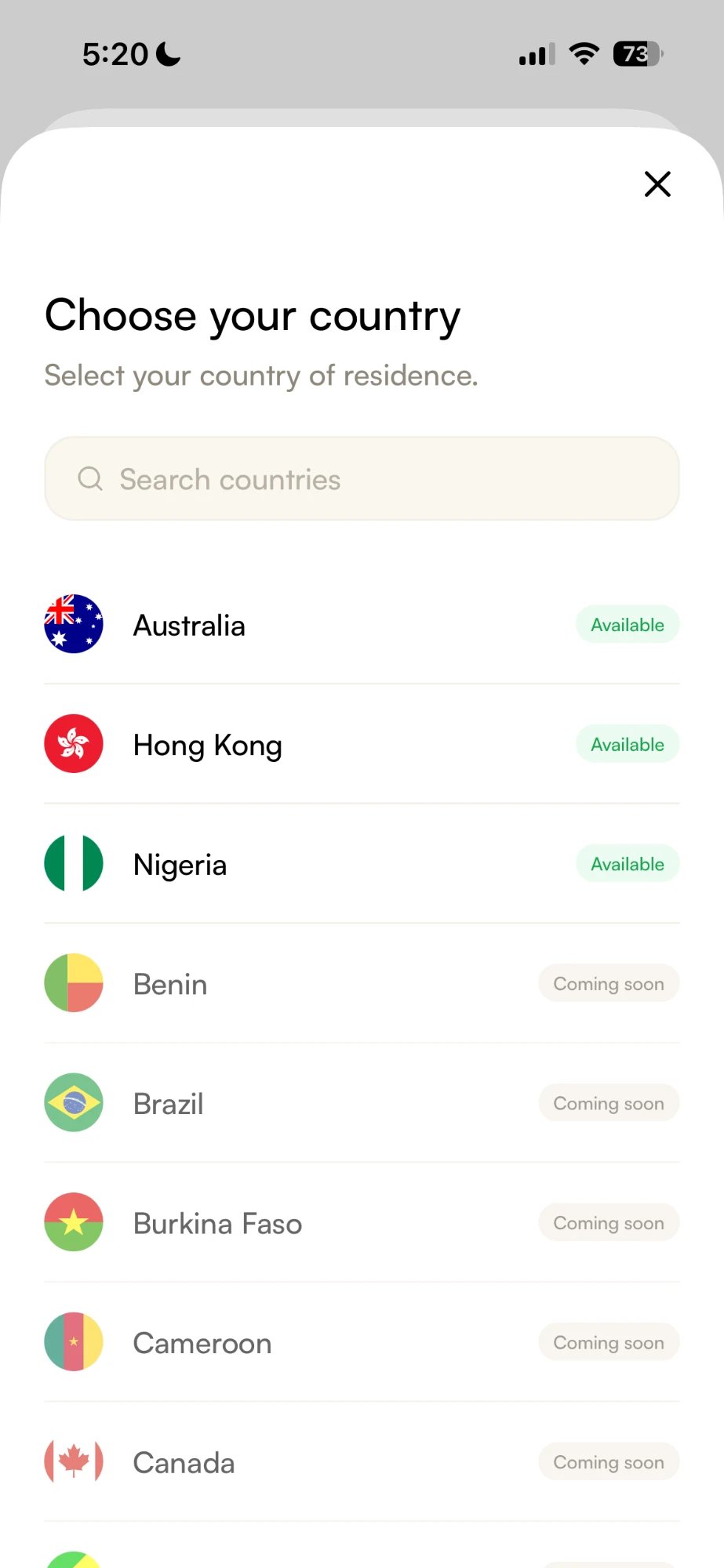
Your country of residence. Countries you can verify in now are marked **Available**; the rest show **Coming soon**.
Read the Terms of Service and Privacy Policy, then tap **Agree and continue**.
Your country of residence. Countries you can verify in now are marked **Available**; the rest show **Coming soon**.
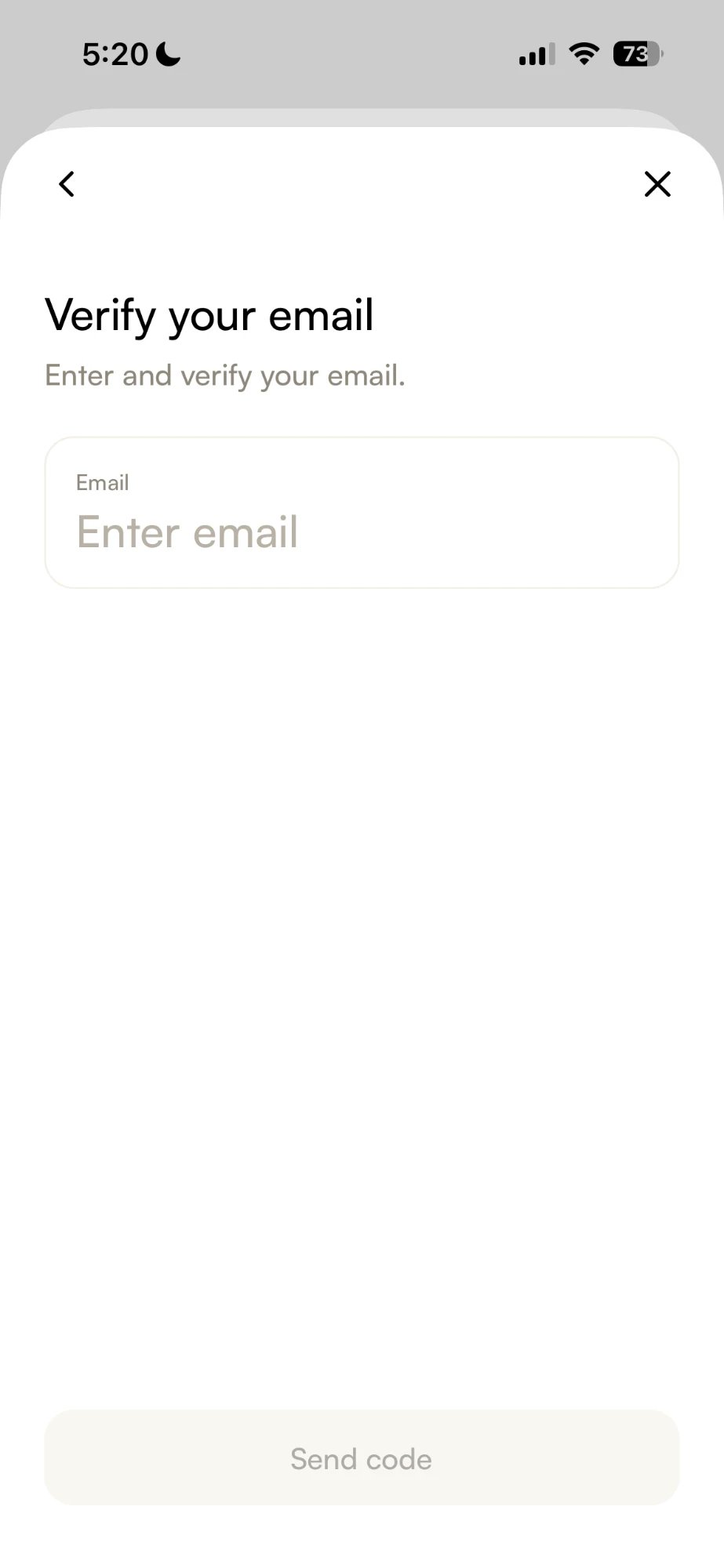
 Enter your email and tap **Send code**, then enter the one-time passcode it receives. Check your spam folder if it does not arrive.
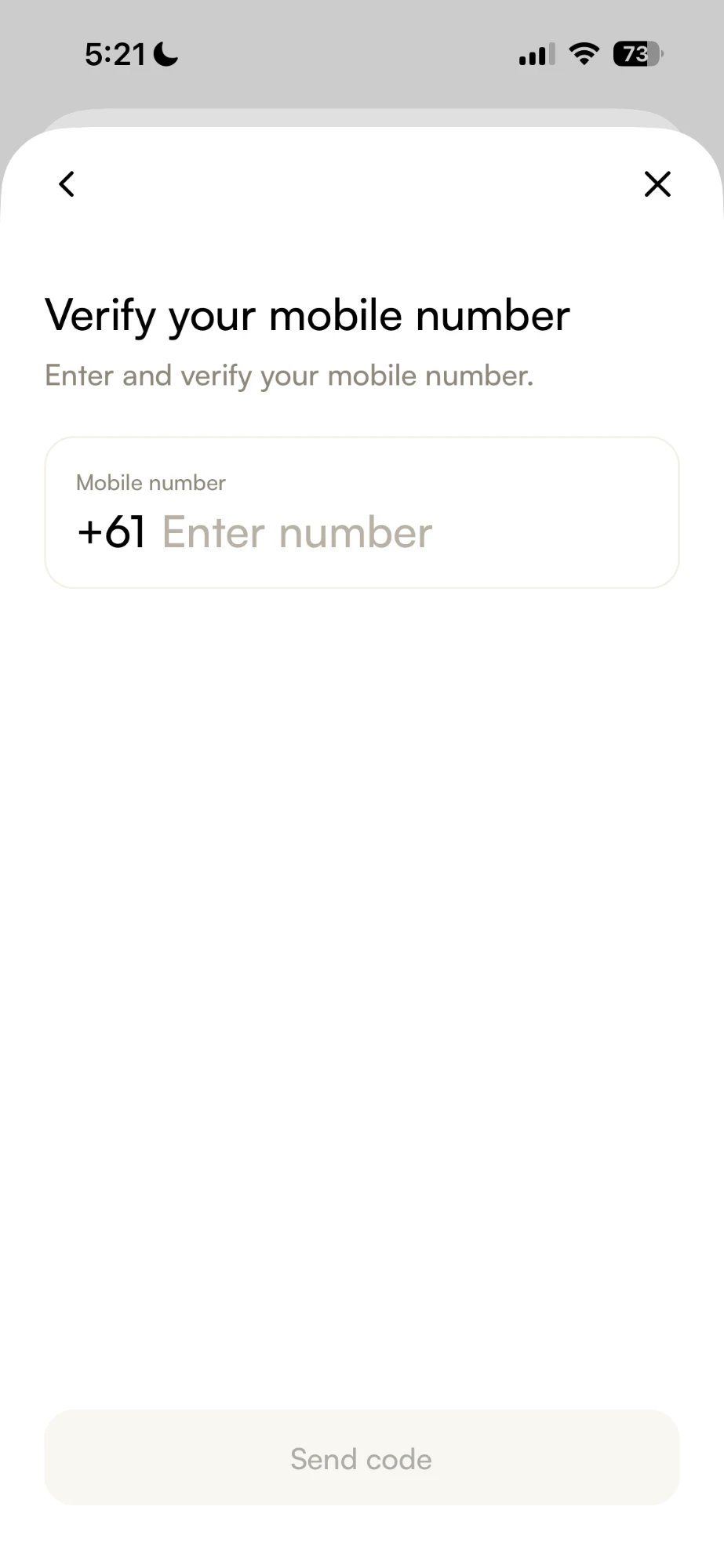
 Australia and Hong Kong only. Your country's dialling code is already filled in. Enter your number, tap **Send code**, then enter the passcode sent to you by text message.
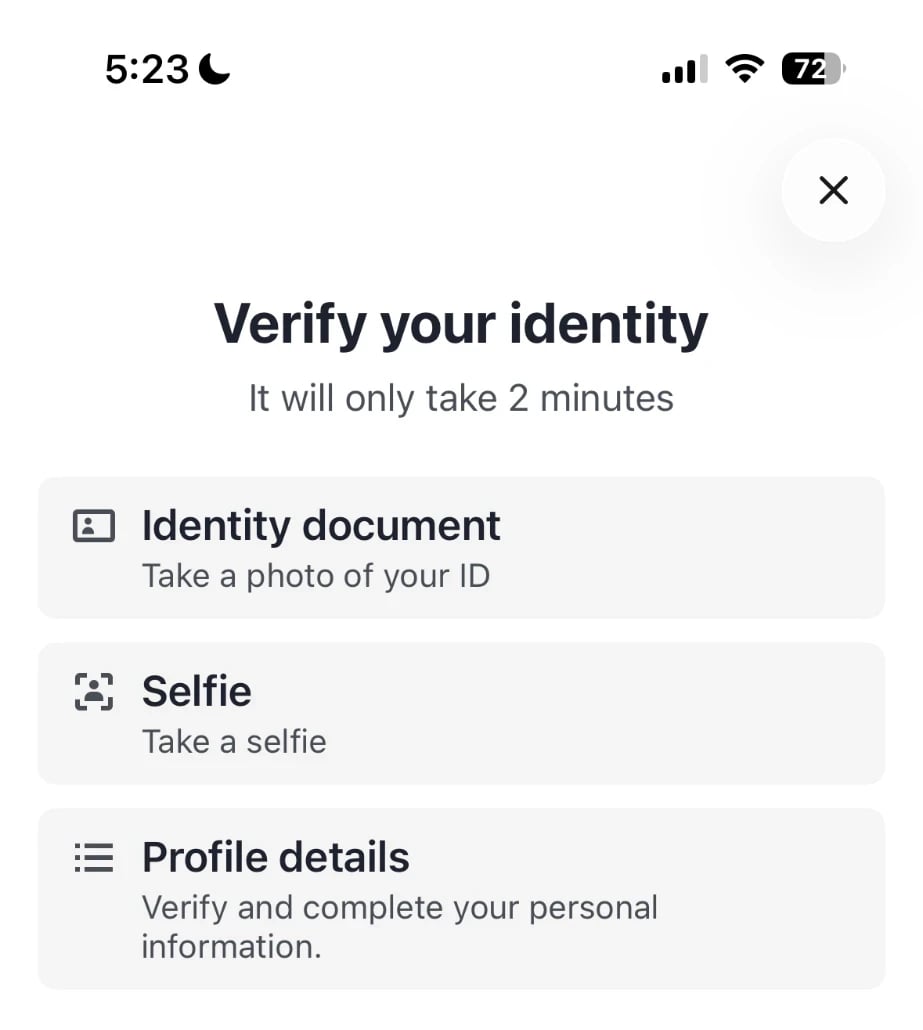
 In Australia and Hong Kong: a passport, driver's licence or national ID card, then a selfie, then a check of your personal details. Tap **Continue** and follow the prompts.
 Usually a few minutes. You are notified when it is done. Back in your account menu, **Your fiat accounts** now reads **Verified**.
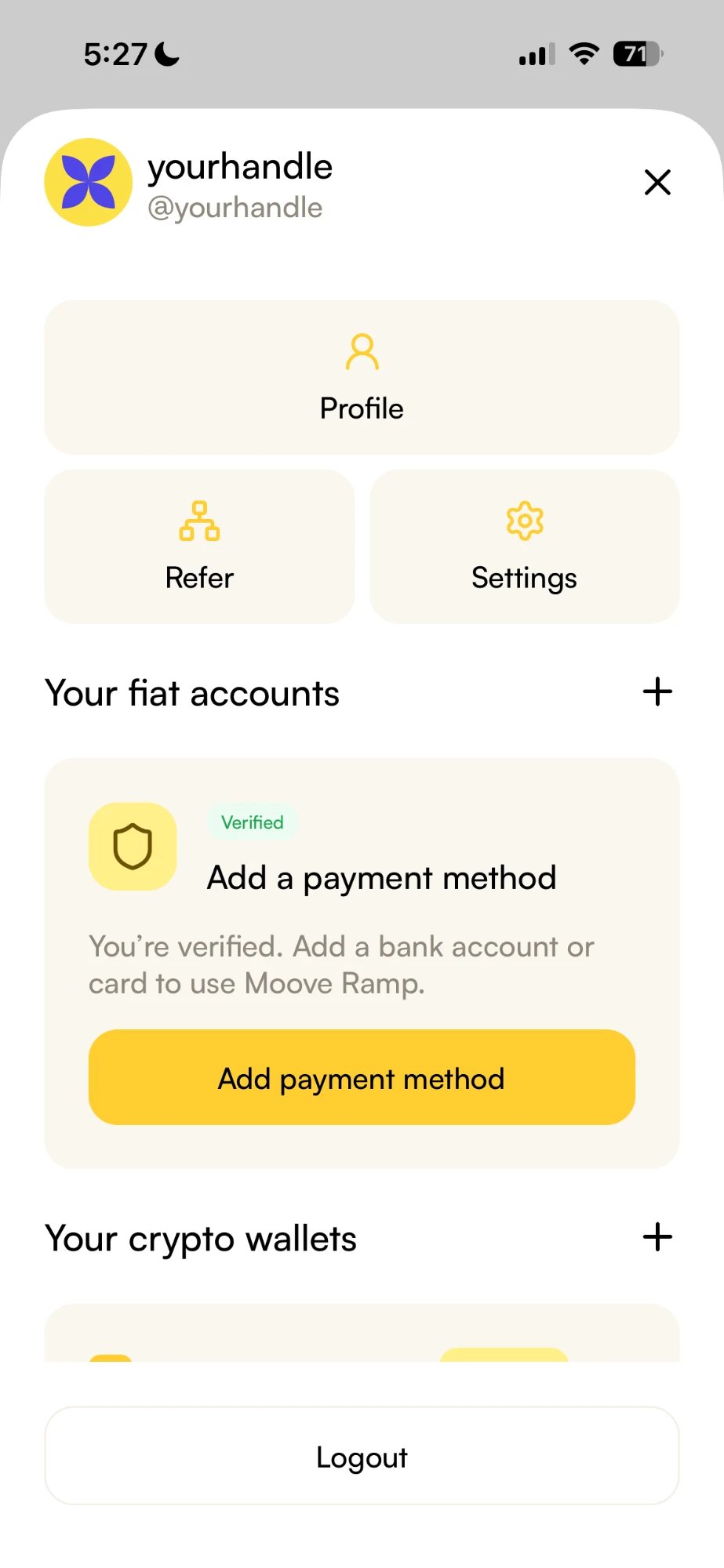 **You do not need to add a card in the Moove App to pay on the web.** You type your card into the checkout each time. **Add payment method** saves a card or bank account for buying crypto with [Moove Ramp](/transact/moove-ramp).
Verification can be rejected if your details do not match your document. [Moove Ramp](/transact/moove-ramp#how-do-i-verify-my-identity) covers what each country asks for and what to do if a check fails.
## How Do I Pay By Card?
On the merchant's payment link, in any browser. The steps below are on a computer.
**You do not need to add a card in the Moove App to pay on the web.** You type your card into the checkout each time. **Add payment method** saves a card or bank account for buying crypto with [Moove Ramp](/transact/moove-ramp).
Verification can be rejected if your details do not match your document. [Moove Ramp](/transact/moove-ramp#how-do-i-verify-my-identity) covers what each country asks for and what to do if a check fails.
## How Do I Pay By Card?
On the merchant's payment link, in any browser. The steps below are on a computer.
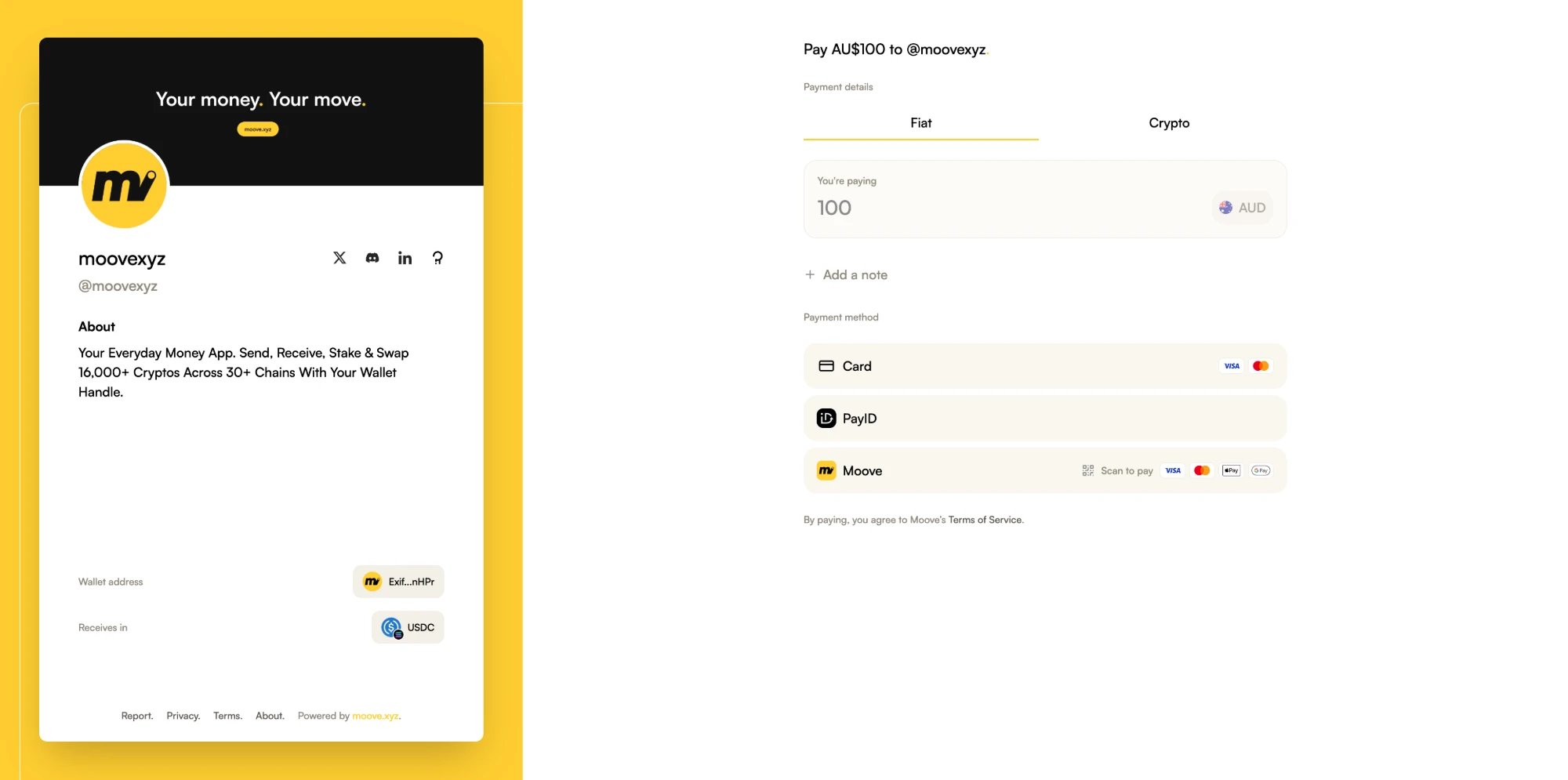 The checkout shows who you are paying and how much. On a link priced in local currency, stay on the **Fiat** tab.
The first time on this browser, a **Scan to pay** code opens so you can sign in.
The checkout shows who you are paying and how much. On a link priced in local currency, stay on the **Fiat** tab.
The first time on this browser, a **Scan to pay** code opens so you can sign in.
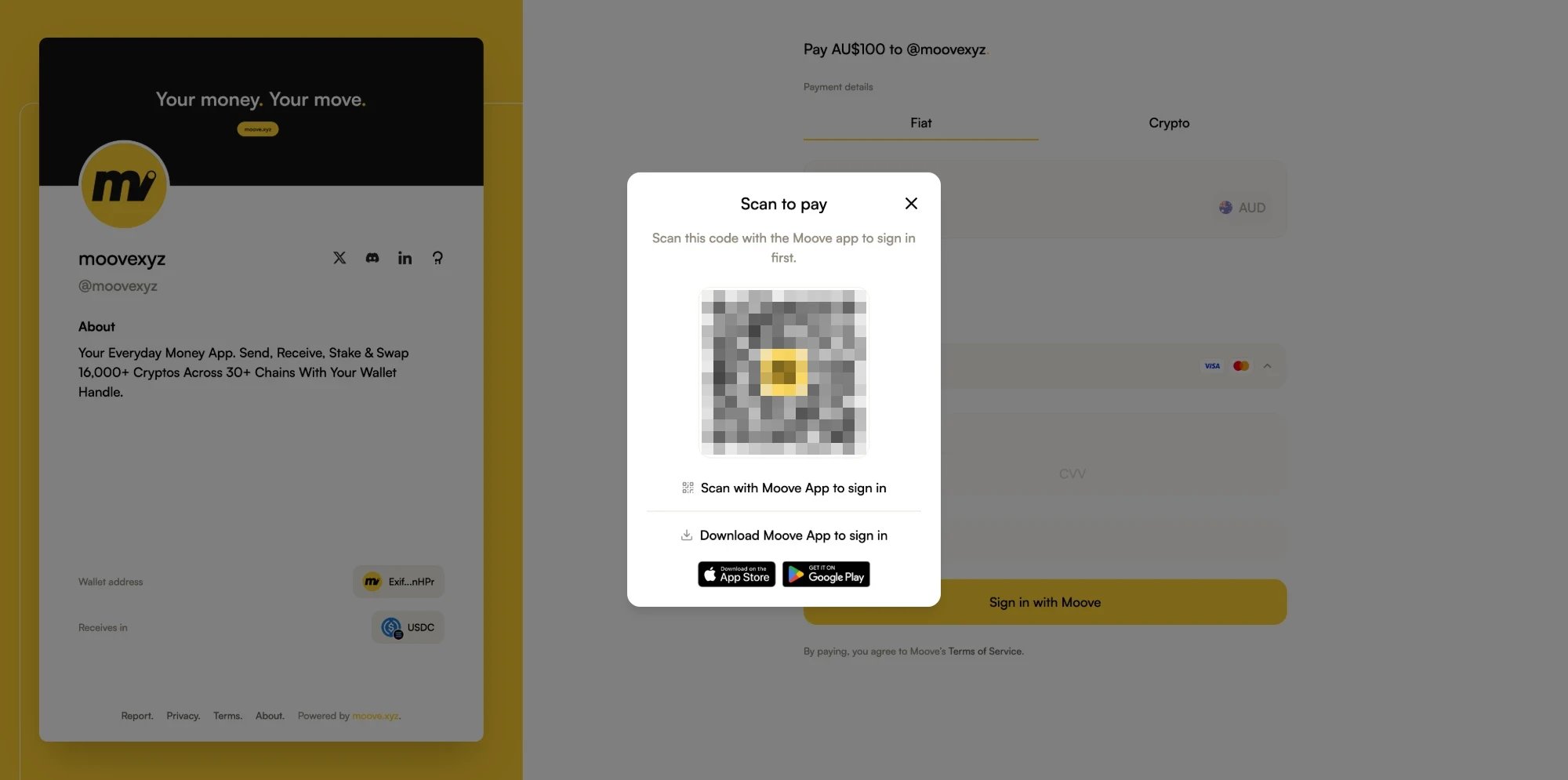 Tap the scan icon at the top right of the Moove App home screen and point it at the code.
**Sign in on web** shows the **Account** and **Signing wallet** that will sign in. Check it is yours, then tap **Connect**. The checkout signs you in on its own.
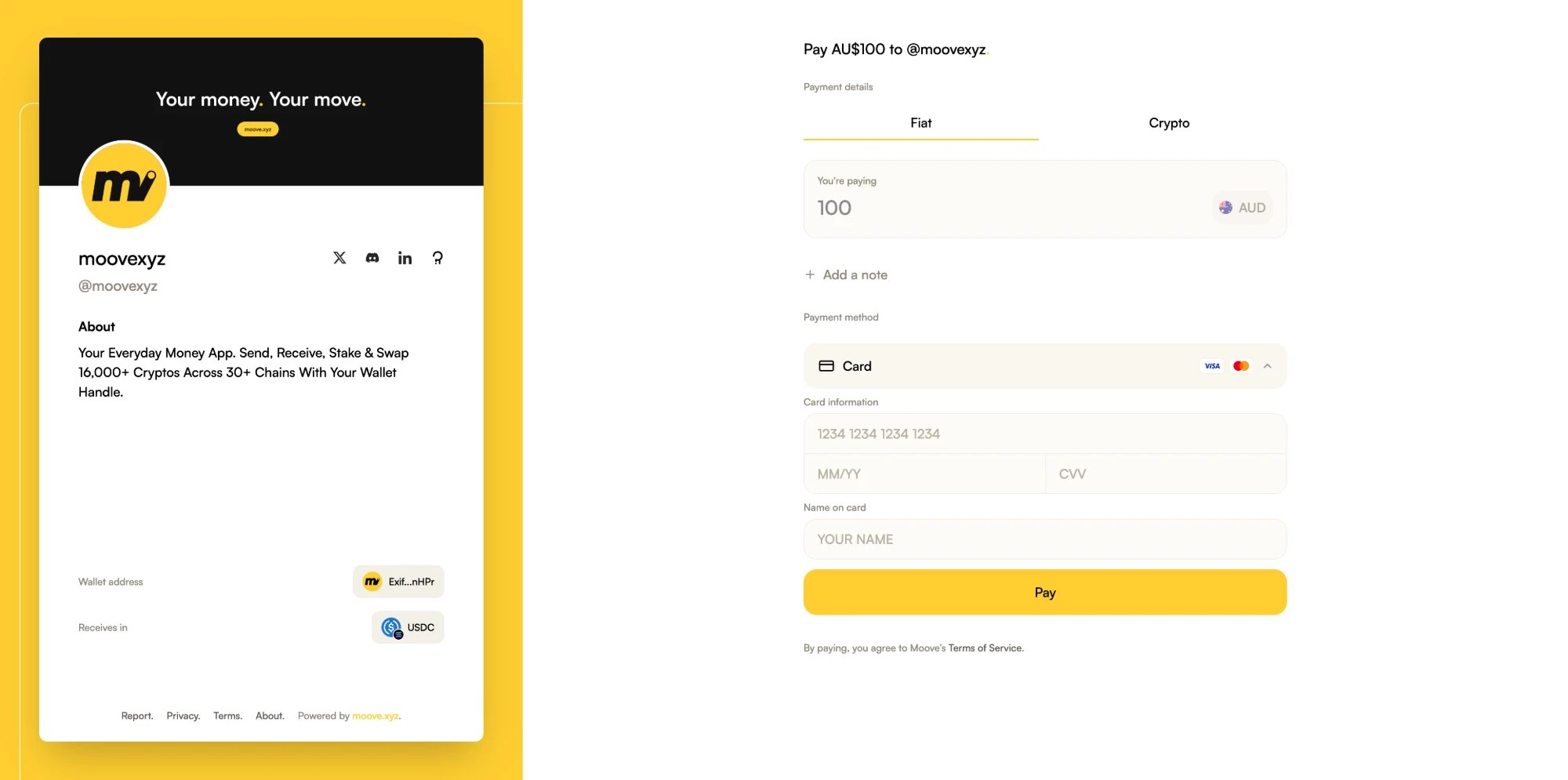
**Card number**, **Expiry date**, **CVV** and **Name on card**, then click **Pay**.
Tap the scan icon at the top right of the Moove App home screen and point it at the code.
**Sign in on web** shows the **Account** and **Signing wallet** that will sign in. Check it is yours, then tap **Connect**. The checkout signs you in on its own.
**Card number**, **Expiry date**, **CVV** and **Name on card**, then click **Pay**.
 The checkout follows the payment to the end. You can close the page once it is processing — the payment keeps going.
**On your phone instead?** The checkout offers **Open Moove App** rather than a code. The Moove App asks you to confirm you started the sign-in on that phone — only continue if you did.
### What Do The Payment Statuses Mean?
| Status | What it means |
| - | - |
| **Confirming your payment** | Your card payment is processing |
| **Payment received** | Paid, and on its way to the merchant |
| **Payment complete** | The merchant has received it |
| **Payment on hold** | Received, and being reviewed before it reaches the merchant |
| **Refund in progress** / **Payment refunded** | Your payment is being, or has been, returned to your card |
| **Payment not completed** | No payment was taken for this attempt. Click **Start a new payment** to try again |
## What If I Have Not Verified Yet?
You can still scan the code. The Moove App says **Verify your identity before signing in to pay by card** and offers **Verify identity** in place of **Connect** — it picks up wherever you left off. Once you are verified, click **Card** on the checkout again.
If you are signed in but the checkout still cannot take your card, it explains why and offers **Continue**, which hands the payment over to the Moove App.
## What If My Card Payment Does Not Go Through?
| What the checkout says | What to do |
| - | - |
| **Verify your identity in the Moove app to pay by card.** | Verify your identity in the Moove App, then click **Card** again |
| **We're finishing verifying you with our payment partner. Try again in a minute.** | Wait a minute, then click **Card** again |
| **You've reached your card payment limit for now.** | Try later, or pay from a crypto wallet |
| **This amount can't be paid by card.** | Pay from a crypto wallet instead |
| **This payment link has already been paid, or someone else is paying it right now.** | Try again in a few minutes |
| **Your card payment couldn't be started. Please try again.** | Click **Try again** |
| **This sign-in code has expired.** | Click **Refresh** for a new code |
## Which Payment Methods Can I Use?
The checkout lists every method the merchant accepts. **Card** and **PayID** appear only on merchants who take them.
| Method | Where | How it works |
| - | - | - |
| **Card** | Web checkout or the Moove App | Visa or Mastercard. On the web you type your card into the checkout; in the Moove App you pay with a card saved there |
| **PayID** | Web checkout or the Moove App | Links priced in Australian dollars. Signs in and checks your identity the same way as **Card** |
| **Moove** | Web checkout | Hands the payment to the Moove App — **Scan to pay** on a computer, **Open in app** on a phone |
| **Crypto** | Web checkout | Connect any [supported wallet](/platform-support/supported-wallets) and pay in what you hold. No Moove account and no identity check |
| **Apple Pay**, **Google Pay** | Moove App | Coming soon |
### How Do I Pay By PayID?
Australia. On a link priced in Australian dollars, click **PayID** on the checkout and sign in the same way as for a card.
The checkout shows the **PayID**, the **Exact amount**, a **Payment reference** and an **Expiration date**.
Send the exact amount to that PayID, quoting the payment reference. Pay before the expiration date.
The checkout follows the transfer until the merchant has received it.
Send the transfer **once**, for the exact amount, with the reference. Changed your mind before sending? Click **Pay another way** and confirm **I haven't sent it**.
### How Do I Pay On My Phone?
Open the payment link on your phone and pay in the Moove App, without signing in on the web.
On the **Moove** row of the checkout. The payment opens in the Moove App. Without the Moove App installed, you are taken to the App Store or Google Play.
The payment opens on the **Fiat** tab. Tap **From** to pick a card saved in the Moove App, or PayID in Australia. No card saved yet? [Add one](/transact/moove-ramp#add-a-card) — it takes a moment. **Crypto** pays from your Moove Wallet instead.
The checkout follows the payment to the end. You can close the page once it is processing — the payment keeps going.
**On your phone instead?** The checkout offers **Open Moove App** rather than a code. The Moove App asks you to confirm you started the sign-in on that phone — only continue if you did.
### What Do The Payment Statuses Mean?
| Status | What it means |
| - | - |
| **Confirming your payment** | Your card payment is processing |
| **Payment received** | Paid, and on its way to the merchant |
| **Payment complete** | The merchant has received it |
| **Payment on hold** | Received, and being reviewed before it reaches the merchant |
| **Refund in progress** / **Payment refunded** | Your payment is being, or has been, returned to your card |
| **Payment not completed** | No payment was taken for this attempt. Click **Start a new payment** to try again |
## What If I Have Not Verified Yet?
You can still scan the code. The Moove App says **Verify your identity before signing in to pay by card** and offers **Verify identity** in place of **Connect** — it picks up wherever you left off. Once you are verified, click **Card** on the checkout again.
If you are signed in but the checkout still cannot take your card, it explains why and offers **Continue**, which hands the payment over to the Moove App.
## What If My Card Payment Does Not Go Through?
| What the checkout says | What to do |
| - | - |
| **Verify your identity in the Moove app to pay by card.** | Verify your identity in the Moove App, then click **Card** again |
| **We're finishing verifying you with our payment partner. Try again in a minute.** | Wait a minute, then click **Card** again |
| **You've reached your card payment limit for now.** | Try later, or pay from a crypto wallet |
| **This amount can't be paid by card.** | Pay from a crypto wallet instead |
| **This payment link has already been paid, or someone else is paying it right now.** | Try again in a few minutes |
| **Your card payment couldn't be started. Please try again.** | Click **Try again** |
| **This sign-in code has expired.** | Click **Refresh** for a new code |
## Which Payment Methods Can I Use?
The checkout lists every method the merchant accepts. **Card** and **PayID** appear only on merchants who take them.
| Method | Where | How it works |
| - | - | - |
| **Card** | Web checkout or the Moove App | Visa or Mastercard. On the web you type your card into the checkout; in the Moove App you pay with a card saved there |
| **PayID** | Web checkout or the Moove App | Links priced in Australian dollars. Signs in and checks your identity the same way as **Card** |
| **Moove** | Web checkout | Hands the payment to the Moove App — **Scan to pay** on a computer, **Open in app** on a phone |
| **Crypto** | Web checkout | Connect any [supported wallet](/platform-support/supported-wallets) and pay in what you hold. No Moove account and no identity check |
| **Apple Pay**, **Google Pay** | Moove App | Coming soon |
### How Do I Pay By PayID?
Australia. On a link priced in Australian dollars, click **PayID** on the checkout and sign in the same way as for a card.
The checkout shows the **PayID**, the **Exact amount**, a **Payment reference** and an **Expiration date**.
Send the exact amount to that PayID, quoting the payment reference. Pay before the expiration date.
The checkout follows the transfer until the merchant has received it.
Send the transfer **once**, for the exact amount, with the reference. Changed your mind before sending? Click **Pay another way** and confirm **I haven't sent it**.
### How Do I Pay On My Phone?
Open the payment link on your phone and pay in the Moove App, without signing in on the web.
On the **Moove** row of the checkout. The payment opens in the Moove App. Without the Moove App installed, you are taken to the App Store or Google Play.
The payment opens on the **Fiat** tab. Tap **From** to pick a card saved in the Moove App, or PayID in Australia. No card saved yet? [Add one](/transact/moove-ramp#add-a-card) — it takes a moment. **Crypto** pays from your Moove Wallet instead.
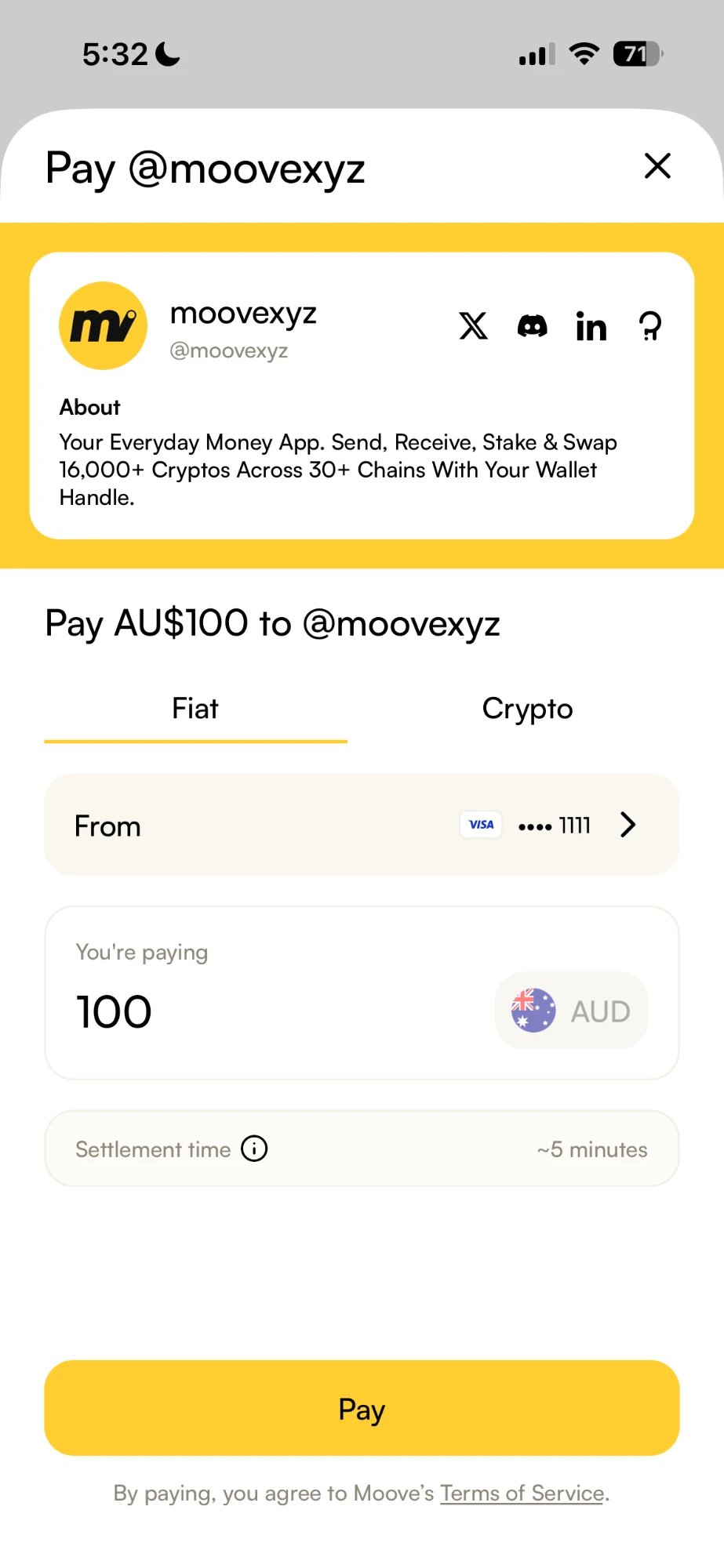 **You're paying** shows exactly what you are charged, with the **Settlement time** underneath. For a card, enter its security code — your bank may add a check of its own.
The Moove App follows the payment until **Payment complete**.
On a computer, the same **Moove** row shows **Scan to pay**: scan it with the Moove App and the payment opens on your phone.
## What To Read Next
Buy crypto with your card.
Back up your recovery phrase.
Pay people by their handle.
Set up once, pay by card anywhere. Your Money. Your Move.
This documentation is built and hosted on [Mintlify](https://mintlify.com), a developer documentation platform.
**You're paying** shows exactly what you are charged, with the **Settlement time** underneath. For a card, enter its security code — your bank may add a check of its own.
The Moove App follows the payment until **Payment complete**.
On a computer, the same **Moove** row shows **Scan to pay**: scan it with the Moove App and the payment opens on your phone.
## What To Read Next
Buy crypto with your card.
Back up your recovery phrase.
Pay people by their handle.
Set up once, pay by card anywhere. Your Money. Your Move.
This documentation is built and hosted on [Mintlify](https://mintlify.com), a developer documentation platform.